Customizing a WordPress theme without coding is no longer a dream reserved for developers — it is the everyday reality for millions of WordPress users worldwide. Whether you are a blogger, a small business owner, or a freelancer building your first portfolio, you do not need to write a single line of PHP or CSS to make your website look exactly the way you want.
I know what you are probably thinking: "But my theme looks so generic — how do I make it mine without breaking everything?" That exact fear kept a lot of people from experimenting with their WordPress sites for years. This guide is here to change that.
In 2026, WordPress has evolved into one of the most powerful no-code website platforms available. From the native Full Site Editing (FSE) experience to premium drag-and-drop builders like Elementor and Divi, there are more ways than ever to customize a WordPress theme without touching a single line of code. By the end of this post, you will have a complete toolkit and clear, step-by-step knowledge to make your site visually stunning and uniquely yours.
Why Customizing WordPress Without Coding Makes Sense in 2026
WordPress powers over 43% of all websites on the internet as of 2026. What began as a blogging platform has become a full-featured content management system (CMS) that supports everything from personal blogs to billion-dollar e-commerce stores. And yet, the biggest misconception about WordPress remains: "You need to know how to code to build something good-looking."
That is simply not true anymore. Here is why the no-code approach makes complete sense:
- Speed: Drag-and-drop builders let you build and iterate in minutes, not days.
- Cost: You skip expensive developer fees for simple design changes.
- Control: You stay in control of your own website without depending on a developer for every tweak.
- Safety: Modern builders come with undo history, revision tracking, and staging modes — so you cannot easily "break" your site.
- Community: Massive ecosystems of templates, tutorials, and forums mean answers are always a search away.
"The best website you can build is the one you actually understand and can update yourself." — A recurring sentiment in every WordPress community forum worth its salt
Now, let us walk through the seven most effective ways to customize a WordPress theme without coding.
Method 1 — The WordPress Theme Customizer
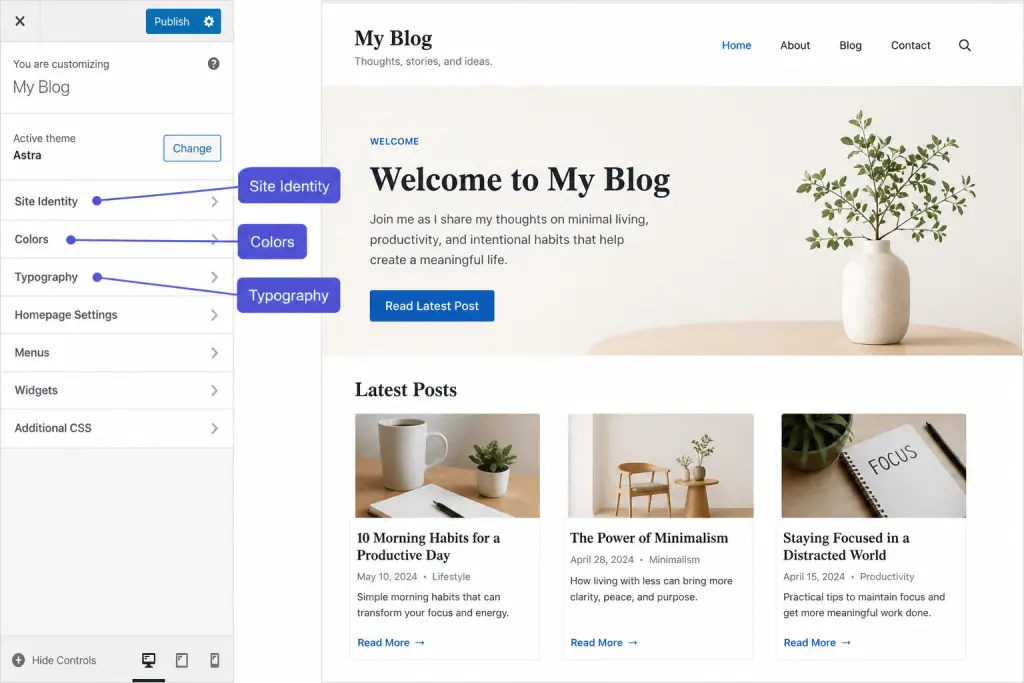
The built-in WordPress Customizer is your first port of call. It is available on every WordPress site regardless of your theme, and it provides a live preview panel so you can see changes in real time before saving them. This is the most basic — and often underused — tool for no-code theme customization.
How to Access It
Go to Appearance → Customize from your WordPress dashboard. You will see a sidebar with various panels depending on your active theme.
What You Can Change in the Customizer
- Site Identity: Upload your logo, set your site title, tagline, and favicon.
- Colors: Change background color, header color, accent colors, and link colors.
- Typography: Many themes expose font size, font family, and line-height controls here.
- Header & Footer Layout: Add navigation menus, search bars, call-to-action buttons.
- Homepage Settings: Choose whether to show your latest posts or a static page.
- Widgets: Add sidebar and footer widgets (though Gutenberg blocks are replacing these rapidly).
- CSS (Additional CSS): There is a small code box for custom CSS — but you do not have to use it if you prefer a truly zero-code approach.
Real-World Example
Say you run a food blog and want your site's primary color to match your brand palette — a warm terracotta orange. Open the Customizer, find the Colors section, paste your hex code, and watch every button, link, and border update in real time. Save it. Done. No code, no developer, no waiting.
Method 2 — WordPress Full Site Editing (FSE)
WordPress Full Site Editing (FSE) is the platform's biggest structural change in years, and it is now mature enough for everyday users. Introduced in WordPress 5.9 and refined continuously since, FSE allows you to customize every part of your site — header, footer, sidebar, archive pages, single post templates — using the same block-based interface as the Gutenberg editor.
What You Need for FSE
FSE only works with block themes. Popular examples include:
- Twenty Twenty-Four (official WordPress default theme)
- Kadence (with its block-friendly architecture)
- GeneratePress (block edition)
- Blocksy
How to Use the Site Editor
Open the Site Editor
Go to Appearance → Editor from your WordPress dashboard. This opens the full-site editing canvas.
Navigate Templates
Use the sidebar to browse templates (Single Post, Page, 404, Archive, etc.) and template parts (Header, Footer).
Edit with Blocks
Click any element on the canvas to select and edit it. Add new blocks by clicking the + icon. Drag, resize, and rearrange freely.
Apply Global Styles
Click the Styles icon (two overlapping circles) in the toolbar to set global colors, typography, and spacing for your entire site at once.
Save & Preview
Hit Save. Preview your changes live before they go public. You can also view revision history and roll back at any time.
FSE is particularly powerful because changes you make in Global Styles propagate site-wide automatically. Change your heading font once, and it updates everywhere — no plugin needed.
For a deeper dive into FSE templates and patterns, check out our guide on understanding WordPress block themes (internal link).
Method 3 — Elementor Page Builder
Elementor is the world's most popular WordPress page builder plugin, with over 12 million active installations. It gives you a fully visual, front-end editing experience that feels more like design software (think Figma or Canva) than a traditional CMS.
Elementor Free vs. Elementor Pro
The free version is genuinely capable — covering most basic customization needs. Elementor Pro unlocks theme building (full header/footer/archive control), motion effects, WooCommerce widgets, and a massive template library.
Key Features Worth Knowing
- Drag-and-drop canvas: 100+ free widgets including sliders, image galleries, testimonials, countdown timers, and forms.
- Global Design Settings: Set your global color palette and typography — changes ripple across every page instantly.
- Responsive editing: Switch between desktop, tablet, and mobile views to fine-tune layouts at every breakpoint.
- Template Library: Hundreds of pre-designed page templates you can import with one click and customize.
- Revision History: Every save is stored — roll back to any previous version of any page.
Practical Elementor Workflow
Here is a quick real-world scenario. You run a photography portfolio and want a full-screen image gallery on your homepage with a dark overlay and your name centered in bold white text. In Elementor:
- Open your homepage with Elementor.
- Add a
Sectionwith a full-height background image. - Set a dark overlay at 50% opacity.
- Drop a
Headingwidget in the center, color it white, set it to 60px. - Hit Publish.
Total time: under 10 minutes. Zero code.
Method 4 — Divi Builder by Elegant Themes
Divi from Elegant Themes is another powerhouse in the WordPress page builder space. Unlike Elementor which is plugin-only, Divi ships as both a standalone theme and a plugin, meaning it can work on top of your existing theme (as the Divi Builder plugin) or replace it entirely (as the Divi Theme).
What Makes Divi Different
- Visual Builder: Inline editing — click on text and type directly on the live page.
- 800+ pre-made layouts: Professionally designed packs organized by industry (restaurant, agency, blog, store, etc.).
- Divi AI: Like Elementor, Divi has integrated AI assistance to generate layouts, write copy, and suggest designs based on your brand.
- Theme Builder: Full control over headers, footers, and dynamic templates — no code required.
- Pricing: Divi is sold as a lifetime license or annual plan and covers unlimited sites — excellent value for agencies.
If you are building client sites or managing multiple WordPress websites, Divi's unlimited license model makes it especially cost-efficient. Read our comparison of Elementor vs. Divi (internal link) to decide which is right for your workflow.
Method 5 — Bricks Builder (2026's Rising Star)
If Elementor and Divi are the mainstream choices, Bricks Builder is the tool that professional WordPress designers are buzzing about in 2026. It is a theme builder (not just a page builder) built on a clean, performance-first architecture that generates leaner HTML than most competing tools.
Why Bricks Has Earned a Devoted Following
- Performance: Bricks generates minimal, clean code — leading to faster page loads and better Core Web Vitals scores.
- Full-site control: Header, footer, archive templates, single post templates — all built visually.
- Query loop builder: Pull dynamic content (posts, products, custom post types) into any layout without code.
- Class-based styling: Bricks uses reusable CSS classes under the hood, making your designs consistent and efficient.
- One-time license: A single lifetime purchase covers unlimited sites — a rarity in this space.
Method 6 — Kadence Theme + Starter Templates
If you want blazing-fast performance, deep customization, and a theme that plays nicely with both the Gutenberg block editor and page builders, Kadence is one of the smartest choices in 2026.
The Kadence Ecosystem
Kadence is more than a theme — it is a complete design ecosystem:
- Kadence Theme (Free + Pro): A highly configurable theme with a visual header/footer builder, global typography controls, and per-page sidebar settings — all without code.
- Kadence Blocks: A powerful set of Gutenberg blocks that extend what the native editor can do — advanced columns, icon lists, testimonial carousels, and more.
- Kadence Starter Templates: Import a full-site design — pages, styles, and demo content — with a single click. Over 200+ professionally designed templates across dozens of niches.
The One-Click Import Workflow
Install Kadence Theme & Kadence Starter Templates Plugin
Available free from the WordPress plugin directory.
Browse the Template Library
Filter by niche (business, creative, restaurant, health, etc.) and preview templates.
Import with One Click
Hit "Import" and Kadence sets up the pages, global styles, menus, and demo content automatically.
Swap in Your Content
Replace the demo text and images with your own. Customize colors and fonts via the Customizer or Site Editor.
The entire process — from a fresh WordPress install to a professionally designed, fully functional website — can take under 30 minutes. No code. No designer. No stress.
Method 7 — Using Child Themes (No Coding Required)
A child theme might sound technical, but it is actually one of the safest and most underrated strategies for customizing a WordPress theme — especially if you want your customizations to survive theme updates without being wiped out.
What Is a Child Theme?
A child theme is a sub-theme that inherits all the design and functionality of its parent theme. Any changes you make to the child theme are preserved even when the parent theme updates.
Creating a Child Theme Without Code — Using a Plugin
You do not need to create a child theme manually. Plugins make this completely code-free:
- Child Theme Wizard — Creates a child theme with one click.
- Child Theme Configurator — Lets you copy and override specific styles visually.
Once your child theme is active, use the Additional CSS field in the Customizer (or just update it via the Kadence/Elementor settings) to make your design changes safely.
Tool Comparison: Which WordPress Customization Method Is Right for You?
Here is a quick overview to help you pick the best approach based on your goals, budget, and experience level:
- Best for: Quick brand tweaks
- Skill level: Beginner
- Full-site control: Limited
- No plugin needed
- Best for: Block theme power users
- Skill level: Beginner–Intermediate
- Full-site control: ✅ Yes
- Requires block theme
- Best for: Landing pages, blogs
- Skill level: Beginner
- Full-site control: Pro only
- Huge community
- Best for: Agency / multi-site
- Skill level: Beginner–Intermediate
- Full-site control: ✅ Yes
- Lifetime license option
- Best for: Performance-focused sites
- Skill level: Intermediate
- Full-site control: ✅ Yes
- Cleanest output code
- Best for: Starter sites, fast builds
- Skill level: Beginner
- Full-site control: ✅ Yes
- Best 1-click imports
| Feature | Customizer | Elementor | Kadence | Bricks |
|---|---|---|---|---|
| No code required | ✅ | ✅ | ✅ | ✅ |
| Header / Footer editor | Partial | Pro only | ✅ | ✅ |
| Mobile-responsive controls | Limited | ✅ | ✅ | ✅ |
| One-click templates | ❌ | ✅ | ✅ | Limited |
| Performance-first output | ✅ | Moderate | ✅ | ✅✅ |
| Free tier available | ✅ | ✅ | ✅ | ❌ |
Pro Tips for Smarter WordPress Theme Customization
After helping hundreds of WordPress sites get built without a single line of custom code, here are the tips that make the biggest difference:
1. Always Start with a Staging Site
Before touching your live website, set up a staging environment. Most managed WordPress hosts (like Kinsta, SiteGround, or WP Engine) offer one-click staging. Make your changes there, test thoroughly, then push to live.
2. Build a Global Brand Kit First
Before customizing individual pages, set your global brand settings: primary color, secondary color, heading font, body font, and button style. This creates consistency across your entire site effortlessly.
3. Use Theme Demo Sites as Inspiration, Not Blueprints
Theme demo content exists to showcase possibilities — not to dictate your site's layout. Import the demo, strip it down to the skeleton you need, and rebuild from there with your actual content and brand.
4. Optimize Images Before Uploading
Design customization does not matter if your site loads slowly. Use tools like Squoosh or the Imagify plugin to compress images before uploading. A fast, good-looking site always wins over a slow, beautiful one.
5. Check Mobile on a Real Device
Builders show you a mobile preview, but nothing replaces checking your design on an actual phone. Navigation menus, font sizes, and button tap areas often need tweaking after you see them on a real device.
6. Use Pattern Libraries and Block Libraries
In the Gutenberg editor, go to the pattern inserter (the + button → Patterns tab) to find pre-built design sections — hero banners, feature grids, testimonials — that you can drop in, customize, and publish in minutes.
For more WordPress optimization tips, check out our resource on speeding up your WordPress site (internal link).
Ready to Build Something Remarkable?
Explore our in-depth WordPress tutorials and no-code guides at CodeThesiss — your go-to resource for building better websites without the code headaches.
Browse WordPress Tutorials →Frequently Asked Questions
Absolutely. Tools like Elementor, Kadence, and WordPress Full Site Editing are designed from the ground up for non-coders. Millions of WordPress sites are built and maintained every day by people with zero programming background.
It depends on the tool. Heavier page builders like Elementor can add page weight if used carelessly. Lighter options like Kadence and Bricks are engineered for performance. Always use a caching plugin (like WP Super Cache) and optimize your images regardless of which builder you use.
Most builder-specific customizations (Elementor, Divi, Bricks) are stored in the database and will not transfer if you switch to a different theme or builder. Global settings (colors, fonts) set via the Customizer or FSE are more portable within compatible themes. Always test on staging before switching themes.
Both are excellent for beginners in 2026. Gutenberg with Full Site Editing is the native WordPress solution — free and deeply integrated. Elementor offers a more visual, familiar drag-and-drop experience that many people find easier to learn. Start with FSE/Gutenberg if you want zero bloat; go with Elementor if you want a guided, template-first experience.
Elementor Free is capable enough for most page-level design. For full theme building — custom header, footer, archive templates, WooCommerce product pages — you need Elementor Pro. Alternatively, pair Elementor Free with a theme like Kadence or Astra that handles header/footer customization natively for free.
Use a child theme (covered in Method 7 above). Any customizations made through a child theme are stored separately and will never be overwritten by parent theme updates. Plugins like Child Theme Wizard make this a one-click process.
Conclusion: Your WordPress Theme, Your Rules
Customizing a WordPress theme without coding has never been more accessible, more powerful, or more enjoyable. In 2026, the question is not whether you can do it — it is which approach suits you best.
If you are just starting out, the built-in WordPress Customizer and Full Site Editing will take you further than you expect. If you want drag-and-drop freedom and a rich template ecosystem, Elementor or Divi are excellent companions. For performance and professional-grade results, Bricks and Kadence offer the cleanest, fastest foundations available today.
The key is to start. Pick one method, commit to learning it, and build. Your first version does not have to be perfect — it just has to be live. You can always refine, redesign, and improve from there.
The most beautiful WordPress site in the world means nothing if it never gets published. So open that Customizer, fire up Elementor, or import that Kadence starter template — and start building the website you have been imagining.
For more tutorials like this, explore our full WordPress learning hub at CodeThesiss — packed with beginner-friendly, no-fluff guides updated for 2026.
We write practical, no-nonsense guides for WordPress users, developers, and digital creators. Every article is research-backed, hands-on tested, and updated regularly to reflect the latest tools and best practices.