What is a WordPress Theme?
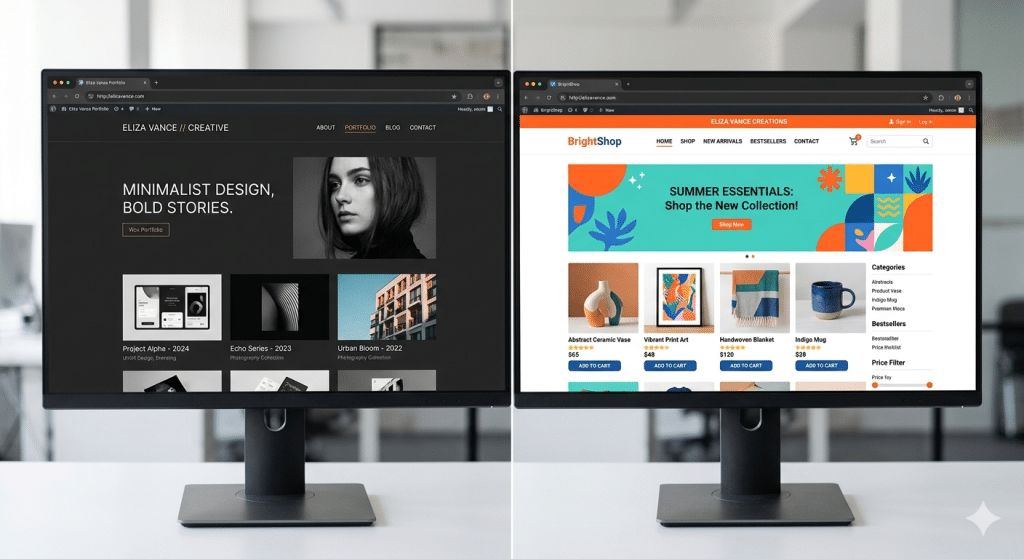
A WordPress theme is a collection of template files, stylesheets, images, and scripts that together control the complete visual appearance of your WordPress website. Think of it as the "skin" your content lives inside — change the theme, and your entire site looks different, even though every blog post, page, and setting you've configured stays exactly the same.
When someone visits your site, everything they see — the colors, fonts, layout, navigation style, footer design — all comes from your active WordPress theme. Your content (words, photos, data) lives in the database, but the theme decides how it gets dressed before appearing on screen.
💡 Key Insight
In 2026, WordPress powers over 43% of all websites on the internet. Themes are one of the biggest reasons — they make professional design accessible to anyone, no coding degree required. (Source: W3Techs)
A default WordPress installation comes with a pre-installed theme (currently Twenty Twenty-Five), but the WordPress.org theme directory alone offers over 12,000 free themes — and that doesn't include thousands of premium options from third-party marketplaces.
⚠️ Important Rule
A WordPress theme should never hold critical site functionality like contact forms or membership features. Those belong in plugins — so you don't lose important features if you ever switch themes.
How Does a WordPress Theme Work?
Behind every beautiful WordPress theme is a set of files working together in a structured way. WordPress reads these files and uses them to assemble the HTML that gets sent to your visitor's browser. Here's how it all fits together.
Core Components of a WordPress Theme
Every WordPress theme — from the simplest free option to a $300 premium powerhouse — is built from the same foundational components:
Template Files (.php)
PHP files that define the structure of different page types — homepage, single posts, archives, 404 pages, and more.
Stylesheets (style.css)
The mandatory main stylesheet. Holds all visual styling — colors, typography, spacing, and responsive breakpoints.
functions.php
Acts like a plugin for your theme. Registers features, enqueues scripts, and adds custom functionality specific to the theme.
Media & Assets
Images, fonts, icons, and JavaScript files that contribute to the theme's visual design and interactive behavior.
WordPress uses a template hierarchy — a specific priority order — to decide which template file to use for any given URL. If a specific template exists (like category-recipes.php), it uses that. If not, it falls back to a more general one (category.php, then archive.php, then finally index.php).
📌 Real-World Example
When a visitor clicks your "About" page, WordPress checks: Does page-about.php exist? No? How about page-{id}.php? No? Then it falls back to page.php. That file's layout — the sidebar, header image, column structure — all comes from your active theme.
WordPress Theme vs. Template: The Real Difference
These two terms get confused constantly, even by experienced WordPress users. Here's the clean distinction you need to remember:
A WordPress theme is the entire package — it governs the look and feel of your whole website. You activate one theme at a time, and it applies globally across every page and post.
A template is a single file within a theme that controls the layout of one specific page or section. Your theme might have a separate template for your blog, your portfolio, and your contact page.
Types of WordPress Themes Explained
Not all WordPress themes are created equal — and the type you choose will directly impact your workflow, your site's performance, and your long-term flexibility.
Classic Themes vs. Block Themes (2026 Update)
This is the most important distinction in the modern WordPress landscape — and most beginner guides barely cover it properly.
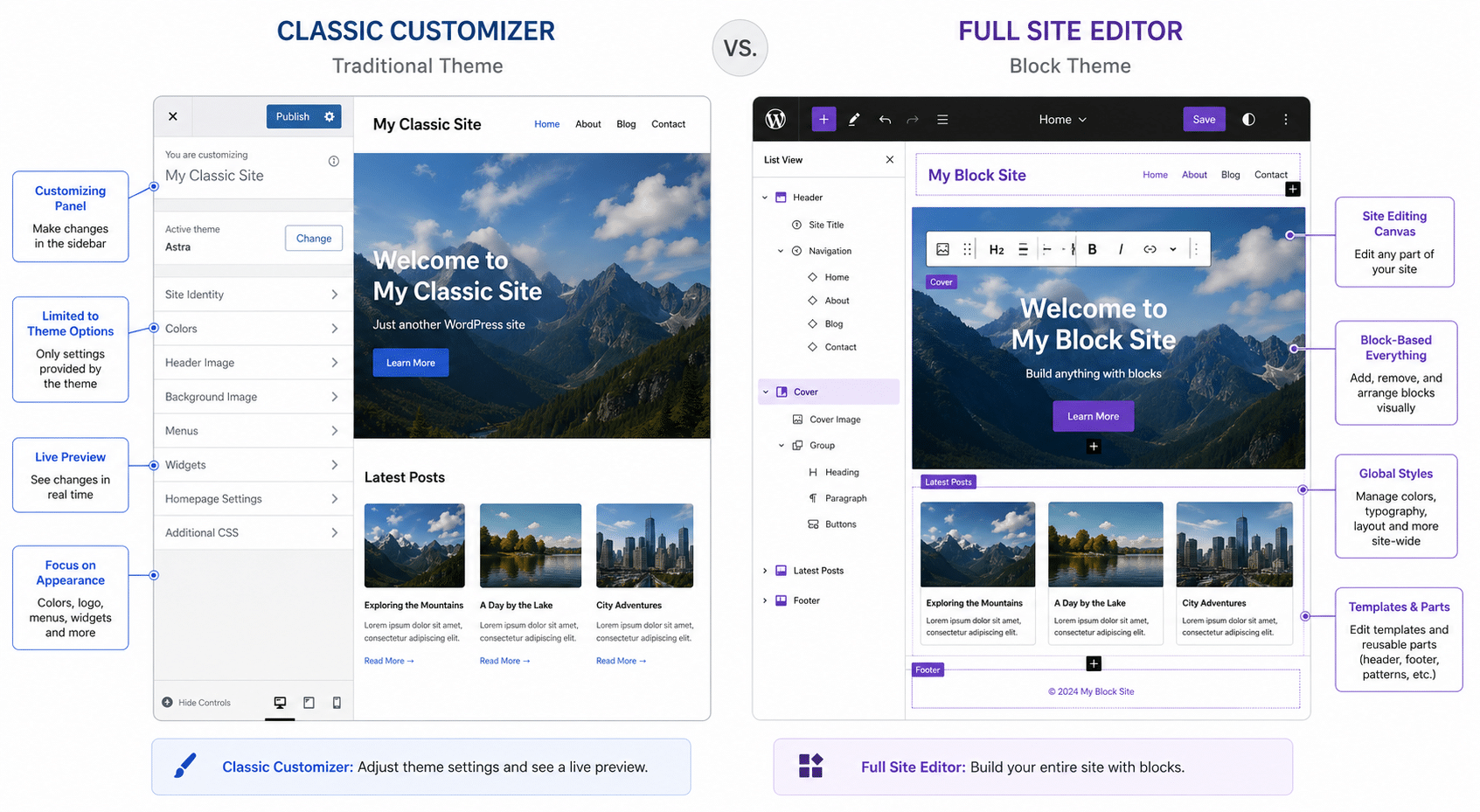
Classic themes are the traditional format, around since WordPress 1.5. They rely on PHP template files and are customized using the WordPress Customizer, widgets, and often a third-party page builder like Elementor. The vast majority of themes on ThemeForest are classic themes.
Block themes are the future of WordPress design. Introduced with Full Site Editing (FSE) in WordPress 5.9, block themes let you edit every part of your website — headers, footers, sidebars, templates — using the same block editor you already use for posts. Everything is visual and drag-and-drop, no separate Customizer panel.
⚠️ Worth Knowing in 2026
Block themes are gaining serious momentum. WordPress's default themes (Twenty Twenty-Three through Twenty Twenty-Five) are all block themes. If you're starting fresh, it's worth considering — but classic themes with Elementor or Bricks Builder still dominate professional websites.
Free vs. Premium WordPress Themes
The free-vs-paid question trips up almost every beginner. The honest answer? It depends entirely on what you're building.
For free themes, always use the official WordPress.org theme directory. Every theme there passes a strict code and security review. Third-party free themes from random sites can contain hidden malware.
Multipurpose vs. Niche WordPress Themes
A multipurpose theme like Astra or Divi is designed to handle virtually any type of website. They're incredibly flexible and typically ship with dozens of demo templates you can import in one click. The trade-off: they can feel feature-bloated and their demos sometimes look generic out of the box.
A niche theme is purpose-built — a restaurant theme has a built-in menu system, a real estate theme has property search filters, a music theme has audio players. These themes do one thing extremely well, but they're harder to repurpose if your site's direction changes.
For most beginners, a lightweight multipurpose theme paired with a good page builder gives the best flexibility-to-simplicity ratio.
Parent Themes vs. Child Themes
Every regular theme is technically a parent theme — a complete, self-contained theme with all required files.
A child theme is a sub-theme that inherits everything from its parent but lets you safely override specific styles or templates. The critical benefit: when the parent theme updates, your customizations in the child theme remain completely untouched.
💡 Pro Tip
If you plan to make more than minor CSS tweaks to any theme, always create a child theme first. It's a 5-minute process that could save you hours of frustration during future updates. (WordPress Developer Guide on Child Themes)
How to Choose the Right WordPress Theme (7 Expert Tips)
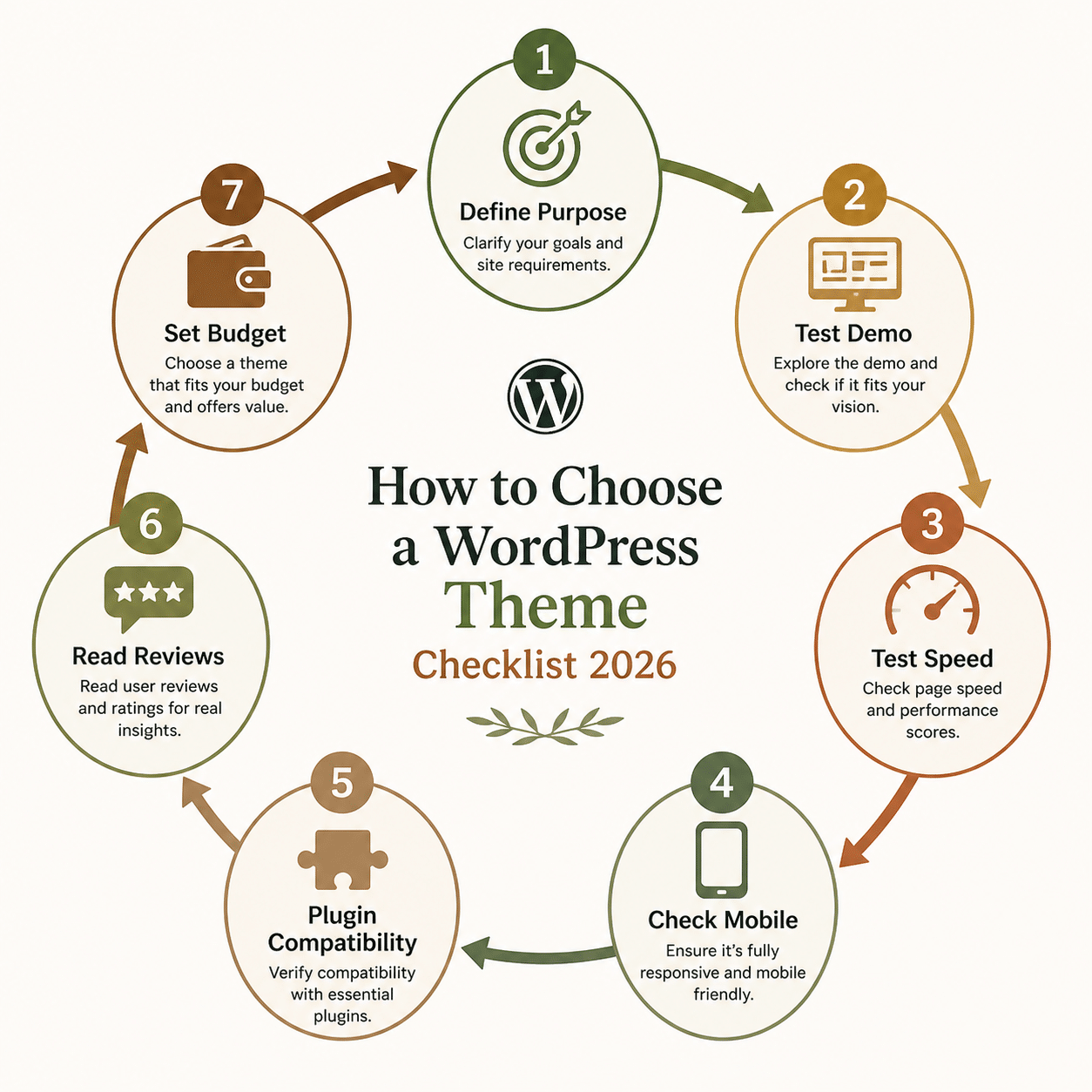
With over 12,000 free themes in the WordPress directory and thousands more in premium marketplaces, choosing a WordPress theme can feel overwhelming. These seven criteria cut through the noise.
-
1
Define Your Site's Purpose First
Before browsing themes, answer: What is this site actually for — a personal blog, portfolio, online store, or business landing page? Each has different layout needs. A photography portfolio needs fullscreen image support. A WooCommerce store needs product grid layouts. Don't browse themes until you know your purpose.
-
2
Test the Demo Thoroughly (on Mobile Too)
Every reputable theme includes a live demo. Open it on your phone and tablet as well as desktop. Click through multiple pages, test navigation menus, and pay attention to how text-heavy content renders. If the demo impresses you on mobile, that's a very good sign.
-
3
Prioritize Performance Over Eye Candy
Run the theme's demo URL through GTmetrix or Google PageSpeed Insights. A visually stunning theme that loads in 6 seconds will hurt your rankings and frustrate visitors. Lightweight themes (under 600KB on a fresh install, ~20 HTTP requests) are the gold standard. Page speed is a confirmed Google ranking factor — never trade it away for flashy animations.
-
4
Verify Mobile Responsiveness
Over 60% of global web traffic comes from mobile devices. Use Google's Mobile-Friendly Test on the demo site. A theme that fails this test is disqualified — full stop. Google uses mobile-first indexing, meaning your mobile experience directly affects your search rankings.
-
5
Check Plugin Compatibility
Make a list of the plugins you need: WooCommerce, Rank Math or AIOSEO, WPForms, a caching plugin. Check the theme's documentation or contact the developer to confirm compatibility. A WordPress theme that fights your SEO plugin is a recipe for hours of frustration.
-
6
Read Reviews and Check the Update History
In the WordPress.org directory, check the "Last Updated" date critically. A theme not updated in more than 12 months is a security liability and may be incompatible with the latest WordPress version. For premium themes, check third-party reviews and the developer's changelog before purchasing.
-
7
Match the Theme to Your Honest Budget
If you're running a personal blog or testing an idea, a well-maintained free theme is completely viable. If you're launching a client's eCommerce site or a professional services business, a premium theme's support and advanced customization options are worth every dollar. Don't buy a $200 premium theme for a project that hasn't validated its model yet.
How to Install a WordPress Theme (Step-by-Step)
Installing a WordPress theme is much simpler than most beginners expect. There are three main methods, depending on whether you're using a free or premium theme.
Method 1: From the WordPress Dashboard (Free Themes)
- Log in to your WordPress admin and go to Appearance → Themes
- Click "Add New Theme" at the top of the page
- Search by name, feature, or niche in the search bar
- Hover over your chosen theme and click "Install"
- Click "Activate" once installation completes
Method 2: Upload a .ZIP File (Premium Themes)
- Download the theme's
.zipfile from the purchase site - Go to Appearance → Themes → Add New Theme
- Click "Upload Theme" and choose your file
- Click "Install Now", then "Activate"
Method 3: Via FTP (Large or Custom Themes)
For very large custom themes or when you can't access the dashboard, use an FTP client like FileZilla to upload the theme folder to wp-content/themes/ on your server. Then activate it from the WordPress dashboard as normal.
💡 Pro Tip
Always test a new theme on a staging site before activating it on your live website. Most quality WordPress hosts include free staging environments. This prevents visitors from seeing a broken layout during transition.
Ready to Build Your WordPress Site?
Check out our curated guide to the best WordPress themes for every type of website — tested, ranked, and explained for real users.
Browse Best WordPress Themes →Most Powerful WordPress Themes in 2026
The WordPress theme market moves fast. Here are the standout performers in 2026, based on performance benchmarks, active installation counts, and community reputation.
1. Astra — The Performance Champion
With over 1.8 million active installations, Astra remains the world's most popular multipurpose WordPress theme. It loads under 50KB without a page builder, works flawlessly with Elementor and Bricks Builder, and ships with 200+ starter templates. Its free version is genuinely powerful.
2. Blocksy — The Rising Challenger
Blocksy has earned fierce developer loyalty for its clean, lightweight code and remarkably deep customizer options. Fully compatible with WooCommerce and offering excellent header/footer builders even in the free version. If Astra feels too mainstream, Blocksy is the smart alternative.
3. Divi — The All-in-One Powerhouse
By Elegant Themes, Divi bundles a full visual page builder directly into the theme. With 800+ pre-made layouts and total design control without code, it's hugely popular for agencies. The trade-off is vendor lock-in and a heavier footprint than minimal themes.
4. GeneratePress — The Developer's Darling
GeneratePress is the purist's choice: blazingly fast, impeccably coded, and completely modular. You only load the CSS and features you actually use. In performance benchmarks, it consistently ranks at the very top. Ideal for developers who want a solid, bloat-free foundation.
5. Neve — Best Free Multipurpose Option
Neve by ThemeIsle is one of the finest free themes available. Fast, responsive, and packed with starter sites for blogs, restaurants, portfolios, and small businesses. The free version handles most use cases beautifully — a top recommendation for beginners starting their first WordPress site.
Frequently Asked Questions About WordPress Themes
Can I use multiple WordPress themes at once?
By default, WordPress only allows one active theme at a time. When you activate a new theme, the previous one is automatically deactivated (but not deleted). Plugins like "Multiple Themes" can enable different themes on different sections of your site, though it's rarely the cleanest solution.
Will changing my WordPress theme delete my content?
No — your posts, pages, comments, media, and settings are stored in your WordPress database, not in the theme files. Changing themes only changes the visual presentation. However, any customizations made directly to theme files (without a child theme) will be lost, and theme-specific widgets may need reconfiguring.
How often should I update my WordPress theme?
Update your theme whenever a new version is released — especially for security patches. Always back up your site before updating, and test on a staging environment first if you've made custom modifications. A theme that hasn't been updated in over 12 months should be replaced.
What's the difference between a WordPress theme and a plugin?
A theme controls how your site looks. A plugin controls what your site does. Contact forms, SEO optimization, backups, membership systems — these belong in plugins. Rule of thumb: if your site would break without a feature when you change themes, that feature is in the wrong place.
Are free WordPress themes safe to use?
Free themes from the official WordPress.org directory go through a strict code review and are generally safe. Themes from random third-party websites or "nulled" (pirated premium) themes are a significant security risk and should never be installed on any site.
Conclusion: Your WordPress Theme is a Foundation, Not Just a Facelift
A WordPress theme is far more than a pretty design. It's the structural foundation of your entire user experience — influencing how fast your site loads, how well it ranks on Google, how visitors navigate and convert, and how easily you can scale as your site grows.
The right theme depends on honest answers to honest questions: What is this site actually for? How technical am I? What's my real budget? What plugins do I need? If you start there and use the seven-criteria checklist from this guide, you'll make a decision you can build on confidently for years.
Don't get paralyzed by the 12,000+ options available. Most successful WordPress sites were built on simple, lightweight, well-supported themes. Choose one, learn it deeply, and focus your energy on creating content and genuine value for your audience.
Ready to take the next step? Check out our hands-on guide to building your first WordPress website from scratch — or dive into our breakdown of the best WordPress themes for every type of site in 2026.